Careful by default.

A cleaner goes into places macOS protects. This is what Brisa does in each of them.

The plan

Three things, in this order.

  1. Remove only what is safe.

    Caches apps rebuild, downloads nobody opened, and repeated copies.

  2. Keeps what it removes as long as you decide.

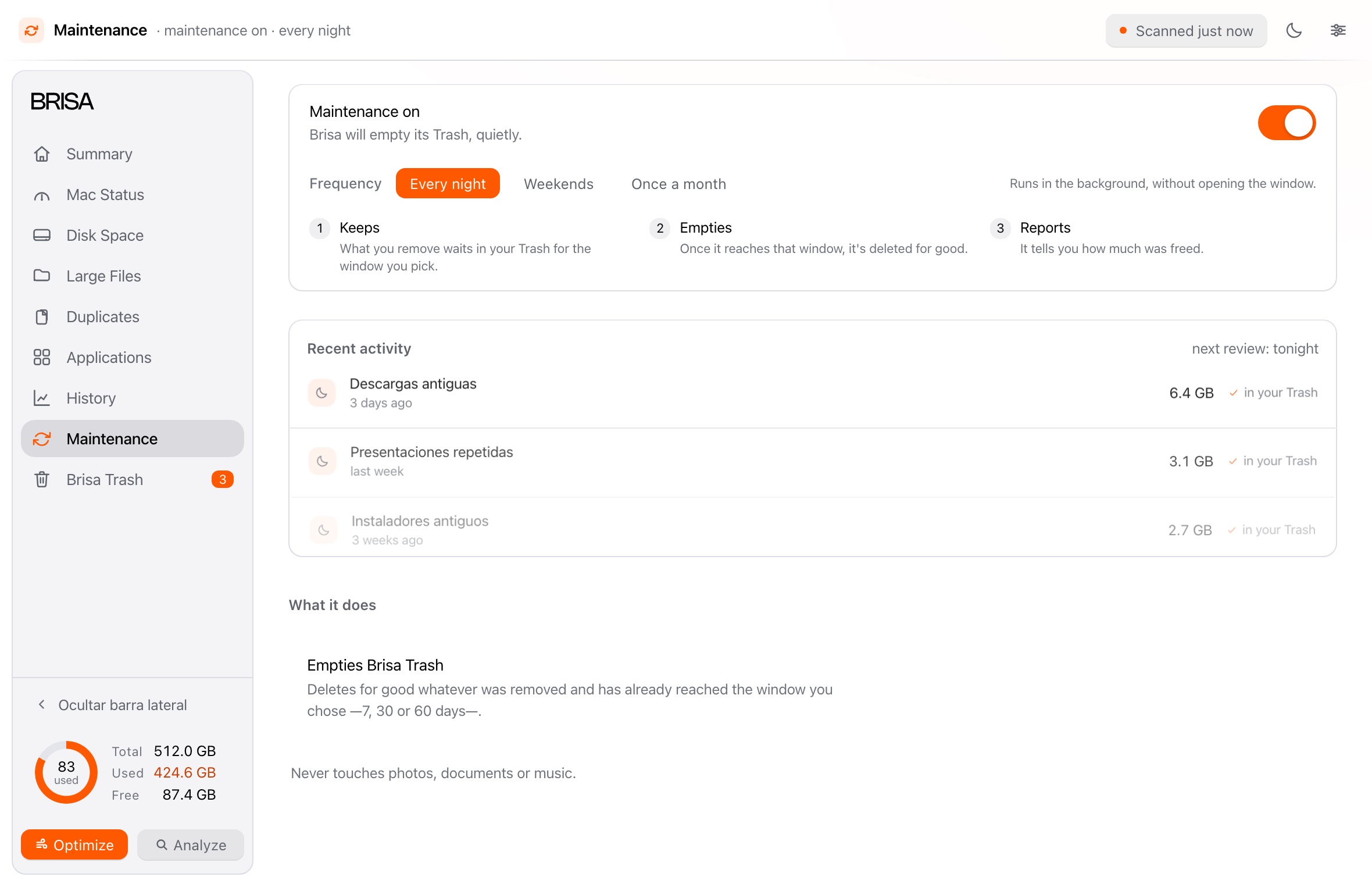
    What it removes waits in Brisa’s Trash with its expiry date showing; the window —7, 30 or 60 days— is yours to pick in Settings.

  3. Report what it did.

    Every cleanup is logged, with what it freed and when.
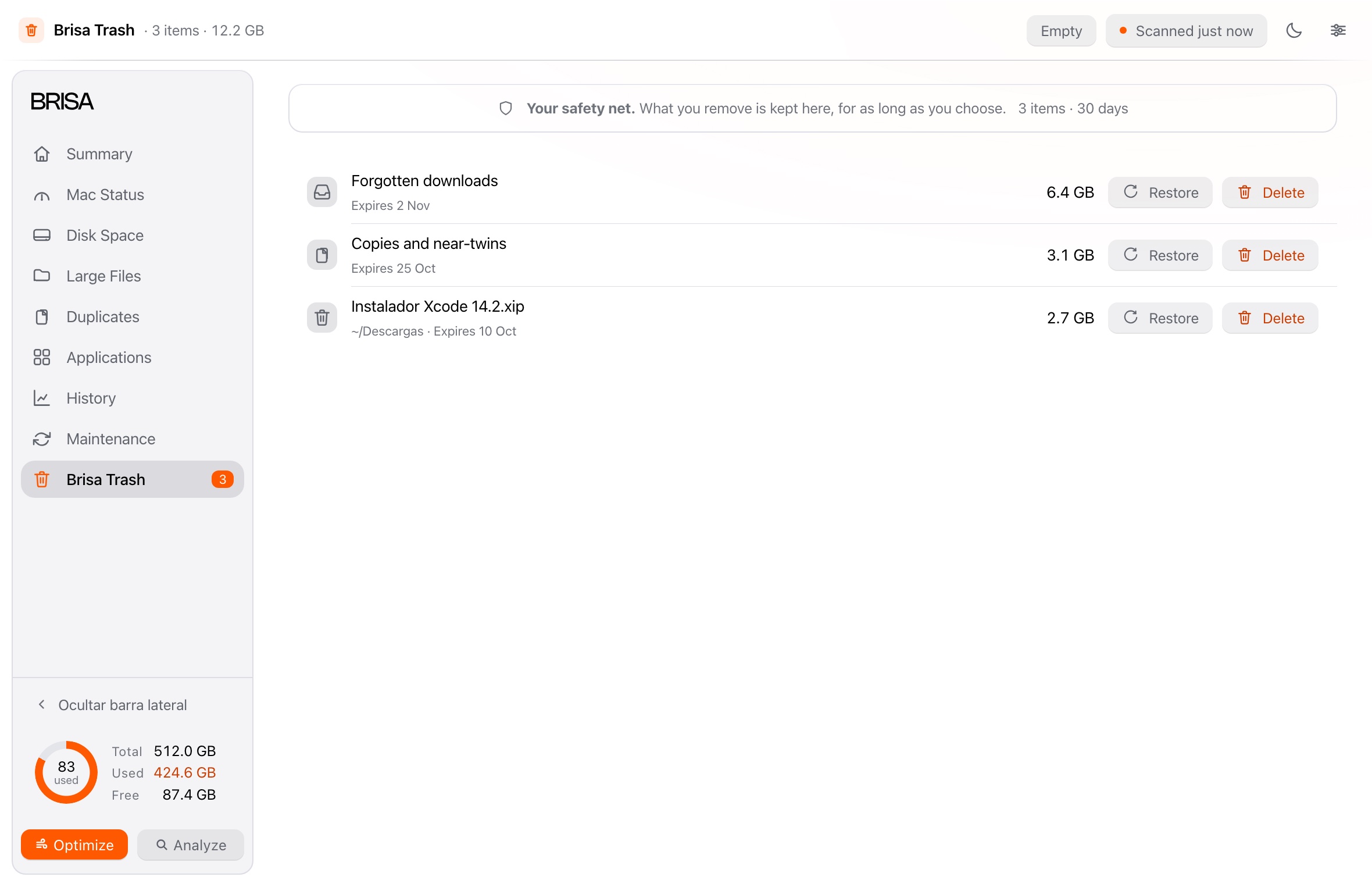
Brisa’s Trash: what was removed, with its expiry date and the space coming back.

The limits

What Brisa never touches.

Cleanup and maintenance use the same exclusion list.

  • Your photos and videos, and everything inside Photos.
  • Your documents, wherever they live, iCloud Drive included.
  • Your music and audio, including what you downloaded to listen offline.
  • Installed applications: Brisa never uninstalls anything on its own.
  • The system and its files.
Maintenance in Brisa: the rule that empties the Trash and when it runs.

Permissions

One permission, and optional.

Brisa asks for nothing when it opens. Without Full Disk Access it measures everything else and says so in the summary, with a button that takes you to the setting.

With it, Brisa also measures Documents, Desktop, Downloads, Photos, iCloud, Mail and Messages. macOS grants it per build, so a new one means repeating the step.

If you would rather not grant it, Brisa still works: it only misses the part of the disk macOS hides.

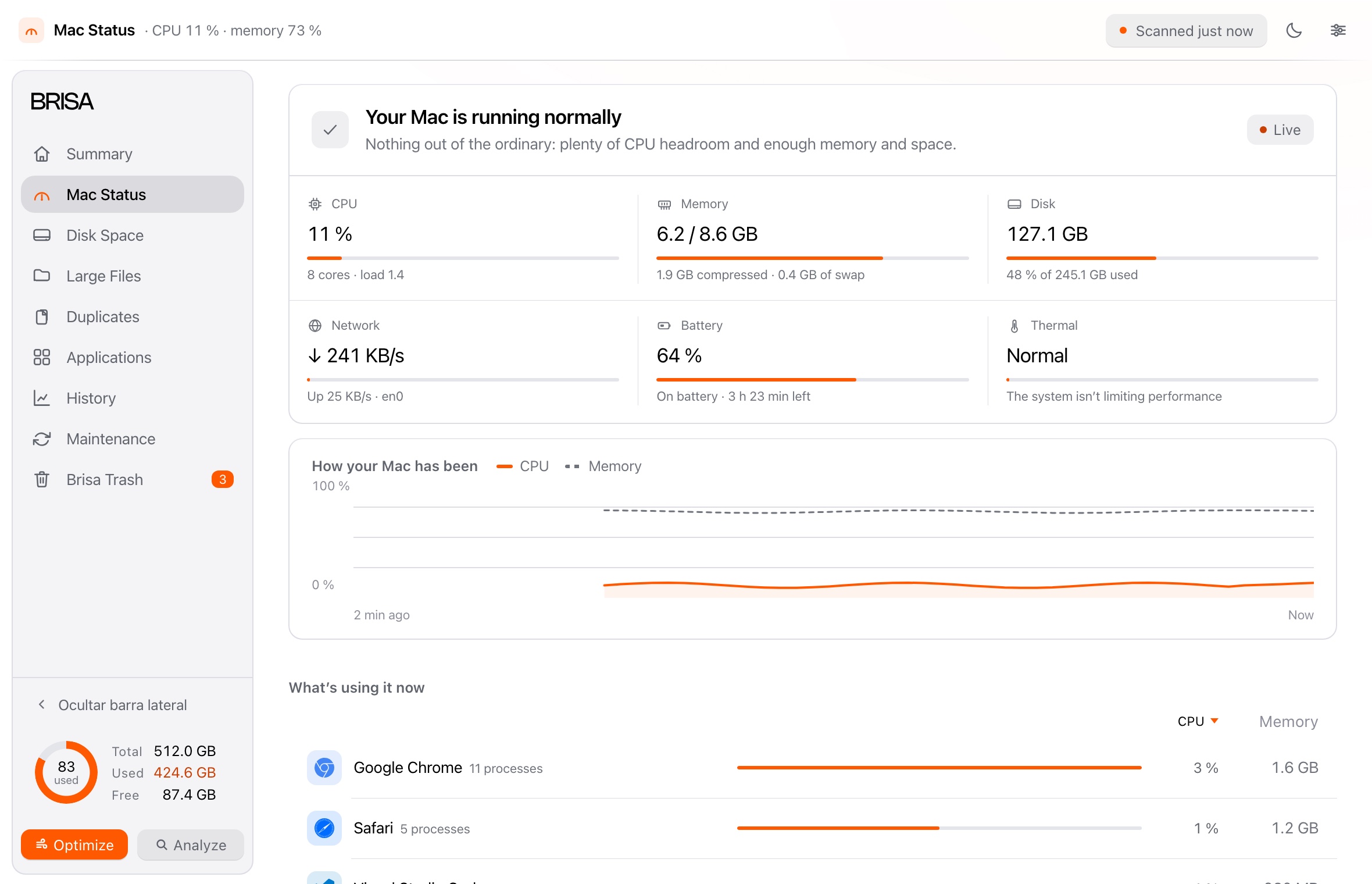
Mac status in Brisa: CPU, memory, disk, network, battery and temperature, live.

Next: installation

The three steps, the macOS warning, and how to uninstall it without a trace.

Download the installer